
Microsoft Purview DSPM for AI: Rollout Guide to Fix Oversharing
· 11 min read
By Juan Pedro Márquez
📋 Quick reference
Audience: CIOs, IT Directors, and Microsoft partners rolling out Microsoft 365 Copilot or Copilot agents in the enterprise
Read time: ~11 minutes
What you'll get: What Microsoft Purview DSPM for AI actually does, the week-by-week rollout that surfaces oversharing before an agent does, which one-click policies to turn on first, and the limits nobody mentions in the demo
Here is the uncomfortable truth about most Copilot deployments: the data risk was already there. Permissions that drifted for a decade, a "shared with everyone" link somebody created in 2019, a finance workbook sitting in a site 4,000 people can open. Copilot did not create any of that. It just made it instantly findable by anyone who can type a question.
That is the problem Microsoft Purview Data Security Posture Management (DSPM) for AI is built to solve. Not with another policy console you have to babysit, but with a single place that measures how exposed your tenant is, tells you which sites are the worst offenders, and gives you one-click controls to shrink the blast radius before you widen Copilot access.
I will say the quiet part out loud. If you have deployed Copilot to a broad population without running DSPM for AI's default risk assessment first, you are not governing the rollout. You are waiting for the incident and hoping it lands on a slow news day. This is the briefing I give IT leaders before they sign off on the next licensing wave.
What is Microsoft Purview DSPM for AI, and what does it actually do?
DSPM for AI is a management area inside the Microsoft Purview portal that discovers how AI is used across your organization, measures the data risk that AI amplifies, and lets you apply protections without leaving the page. It covers Microsoft 365 Copilot and agents, enterprise AI apps like ChatGPT Enterprise, and other third-party AI sites.
Four things sit under that one word "posture": insights into AI activity, ready-to-use policies that prevent sensitive data leaking into prompts, data risk assessments that hunt for oversharing, and compliance controls for how AI interactions are handled and stored. The point is that it joins two conversations that used to happen in different rooms — "who is using AI, and with what data" and "how exposed is the data they can reach."
One detail worth knowing early: there are two versions. The original is now labelled "classic," and Microsoft has shipped a newer DSPM that folds in broader app and agent coverage with simpler management. Start on the current Data Security Posture Management experience; the capabilities below are the durable ones that carry across.
Why does Copilot turn a years-old oversharing problem into an incident overnight?
Because Copilot respects permissions perfectly — and that is exactly the issue. If a user technically has access to a file, Copilot will happily read it, summarize it, and cite it in an answer. No malice, no bug. The model simply surfaces what your access control already allowed but nobody ever exercised at scale.
Think about how oversharing accumulates. A team spins up a SharePoint site and shares it "with everyone in the organization" to avoid a support ticket. A OneDrive folder gets an anonymous link for one external reviewer and never gets cleaned up. Multiply that by years and thousands of sites. Under manual browsing, none of it mattered — nobody was going to stumble across that finance workbook. Under Copilot, one prompt does.
This is why the readiness work you do in SharePoint pays off directly here. If you have not tightened permissions and structure yet, my SharePoint AI data readiness blueprint is the companion to this piece — DSPM for AI finds the exposure, and that playbook is how you fix the structural causes.
What does the DSPM for AI rollout actually look like?
In three moves: discover and assess what is exposed, protect the worst of it with targeted policies, then monitor so it does not drift back. You do not need a six-month program. The default assessment runs on its own; your job is to read it honestly and act on the top findings before you expand access.
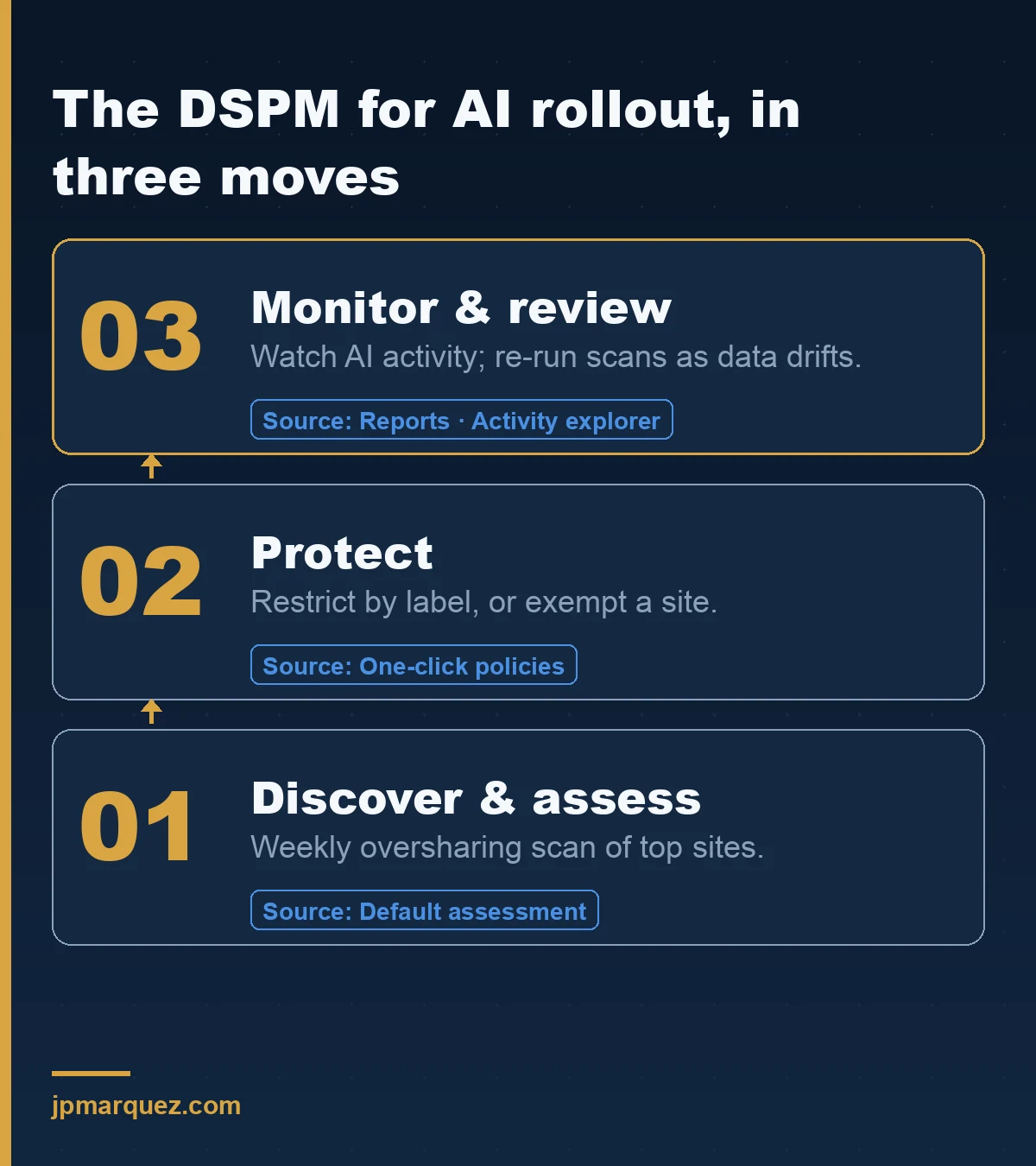
Week 1 — turn it on and let it look. Confirm Microsoft Purview Audit is enabled (it is on by default for newer tenants), then open DSPM for AI with an account in the Entra Compliance Administrator role. The moment auditing is on and users have Copilot licenses, the Reports section starts populating activity for Copilot and agents. No configuration required to start seeing signal.
Week 1, in parallel — read the default data risk assessment. This is the part that matters. With no activation needed, DSPM for AI automatically runs a weekly assessment of the top 100 SharePoint sites by usage, looking specifically for oversharing. The first default assessment has a four-day delay before results appear, so kick it off early. What you get back is blunt: total items, how many contain sensitive data, and how many are shared with "anyone."
Week 2 — protect the top offenders. For each risky site, the assessment gives you Identify, Protect, and Monitor tabs. The Protect tab is where you remediate: restrict Copilot access by sensitivity label, exempt a site entirely with SharePoint Restricted Content Discovery, auto-label unlabeled sensitive files, or set retention to delete stale content. More on which lever to pull below.
Week 3 onward — monitor and review. Use the Reports and Activity explorer views to watch AI interactions by workload — Copilot experiences and agents, enterprise AI apps, other AI apps — and run custom assessments against specific sites or user groups when you need a closer look. This is also where you connect DSPM findings into your wider Microsoft 365 Copilot governance framework rather than treating data security as a separate silo.
Which one-click policies should you turn on first?
Start with the two that reduce leakage and give you visibility fastest: the policy that detects sensitive information shared with generative AI sites, and Data Loss Prevention that stops Copilot summarizing labeled content. Both are preconfigured one-click policies — activate, then wait about 24 hours for data to populate.
My recommended order:
- Detect sensitive info sent to AI — the "extend your insights" one-click policy captures who is pasting sensitive data into third-party AI sites. This is pure visibility; turn it on first because it is low-risk and tells you where your shadow-AI problem actually is.
- DLP to protect Copilot interactions — this uses Data Loss Prevention for the Microsoft 365 Copilot location to prevent Copilot and agents from summarizing files that carry sensitivity labels you choose. It is the single highest-impact control for stopping "Copilot read the thing it should not have."
- Auto-labeling for unlabeled sensitive files — most tenants have a long tail of sensitive documents with no label at all. Auto-labeling policies fix that at scale. Run them in simulation mode first; do not enforce blind.
- Risky AI usage detection — Insider Risk Management can score risky prompts and responses, so anomalous AI behavior tightens a user's restrictions automatically.
What can wait: the ChatGPT Enterprise and Azure AI app connectors, and the network-based detection via a Secure Service Edge integration. Valuable, but only once your Microsoft 365 house is in order. Fix the tenant you own before you instrument the ones you partly do.
How do data risk assessments find oversharing, and what are their limits?
The default assessment scans your busiest 100 SharePoint sites weekly and flags items that are sensitive, over-permissioned, or shared with "anyone." Custom assessments let you target specific sites or users and, with a one-time Entra app setup, do item-level scanning with remediation. Both are genuinely useful — and both have hard limits you must plan around.
The remediation actions on a flagged item are concrete: Resolve (dismiss a false positive), Apply sensitivity label, Notify the site owner by email, or Remove sharing link. That last one I use sparingly — pulling a link can break legitimate access, so it is a scalpel, not a default.
Now the limits, because the demo will not dwell on them:
- Item-level scanning is capped at 10 SharePoint sites per assessment, and OneDrive is not supported for it. Plan your sites in tranches.
- 200,000 items per location maximum, and the file count can be inaccurate above 100,000 files in a location. Very large sites need to be split.
- Timing is not instant. The first default assessment takes four days; custom assessments need about 48 hours; one-click policy data takes roughly a day. Build the wait into your plan so nobody declares "it's not finding anything" on day one.
- Assessments expire after 30 days — you duplicate them to re-run, rather than getting a live feed.
None of this makes the tool weak. It makes it honest. Treat the assessment as a prioritized worklist, not a real-time firewall.
What are the remediation levers, and which one should you actually pull?
The four levers are restrict-by-label, restrict-the-whole-site, auto-label, and retention. Reach for restrict-by-label first because it is precise: it stops Copilot from using specifically sensitive content while leaving the site usable. Restricted Content Discovery is the tourniquet you apply only when a site is too far gone to fix in place.
How I sequence them in practice:
- Restrict access by label — a DLP policy that prevents Copilot and agents from summarizing content carrying the labels you pick. Surgical. This is the default move for a site that is mostly fine but holds some sensitive files.
- Restrict all items — SharePoint Restricted Content Discovery exempts an entire site from Copilot. Use it for a site that is a genuine mess you cannot remediate quickly. It is a tourniquet: it stops the bleeding, it does not heal the wound. A site you leave under Restricted Content Discovery for a year is a site you have quietly given up on governing.
- Auto-label — apply sensitivity labels to unlabeled sensitive files so the restrict-by-label control has something to bite on. Labels are the substrate the whole model runs on; if you have none, start here.
- Retention / deletion — content untouched for three-plus years is often the safest thing to remove. Less data, less exposure, less to assess next quarter.
What does DSPM for AI not cover — and how does it fit the rest of your stack?
DSPM for AI finds and helps remediate data exposure; it does not manage agent identity, runtime prompt-injection defense, or the lifecycle of the agents themselves. It is one layer of governance, not the whole thing. Pair it with identity controls, agent guardrails, and an accountable owner, or you have a great dashboard and a partial answer.
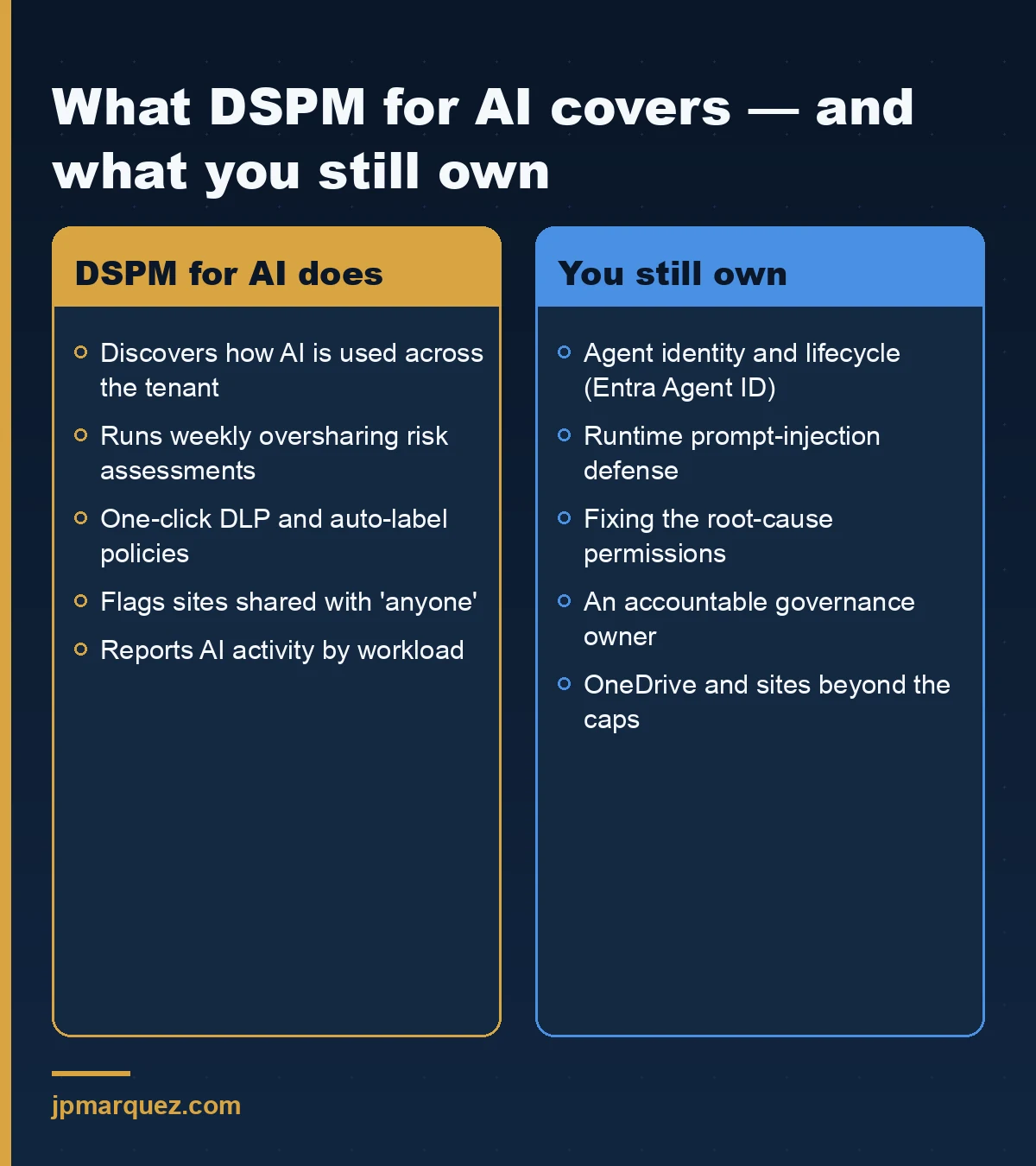
Concretely, DSPM for AI sits next to, not on top of, the rest of your controls. It complements the broader Data Loss Prevention estate, the Copilot data protection and auditing architecture, and the operational guardrails in my Microsoft 365 agent governance checklist. For the data-governance foundations that make labels and DLP effective in the first place, the deeper walkthrough is in Microsoft Purview for AI workloads.
My honest take after doing this work repeatedly: DSPM for AI is the first tool that makes the oversharing conversation quantitative instead of hand-wavy. You stop arguing about whether there is a risk and start ranking which twelve sites to fix first. That shift — from anxiety to a worklist — is worth the licensing on its own.
Frequently asked questions
Do I need a specific license for Microsoft Purview DSPM for AI?
DSPM for AI capabilities are part of the Microsoft Purview data security and compliance suite and align with Microsoft 365 E5 or equivalent Purview licensing. You also need an account with compliance permissions — Microsoft Entra Compliance Administrator is the role Microsoft calls out for getting started. Confirm your exact entitlements against the current Purview service description before you plan a rollout.
How long before DSPM for AI shows useful data?
Expect about 24 hours for one-click policy data, roughly 48 hours for custom data risk assessments, and four days for the first default assessment to display results. Plan the wait in. The most common false alarm I see is a team concluding "it found nothing" on day one, when the assessment simply had not finished its first run.
Can DSPM for AI cover ChatGPT, Gemini, and other third-party AI tools?
Yes, for supported third-party AI sites, with prerequisites: the Microsoft Purview browser extension and device onboarding. It can also register ChatGPT Enterprise workspaces to detect sensitive data shared there. That said, I recommend securing your Microsoft 365 estate first and adding third-party coverage once the internal oversharing is under control.
Is DSPM for AI a replacement for DLP and sensitivity labels?
No — it orchestrates them. DSPM for AI relies on sensitivity labels and Data Loss Prevention as the underlying controls; it adds the discovery, risk assessment, and one-click activation on top. If you have no labels and no DLP, DSPM for AI will mostly tell you that. The foundation still has to exist.
Does restricting a site with Restricted Content Discovery break normal SharePoint use?
No. Restricted Content Discovery only exempts the site's content from Microsoft 365 Copilot discovery. People with permissions still open and work in the site normally. It is a Copilot-scope control, not an access change — which is exactly why it is a useful tourniquet while you remediate the underlying permissions.